COMMON OPERATIONS

Common Operations

A cookbook of high-frequency AiKey operations — each recipe shows screenshots, both Web and CLI workflows, and links over to the relevant docs.

RECIPE 01 · INSTALL

Install the CLI and activate PATH

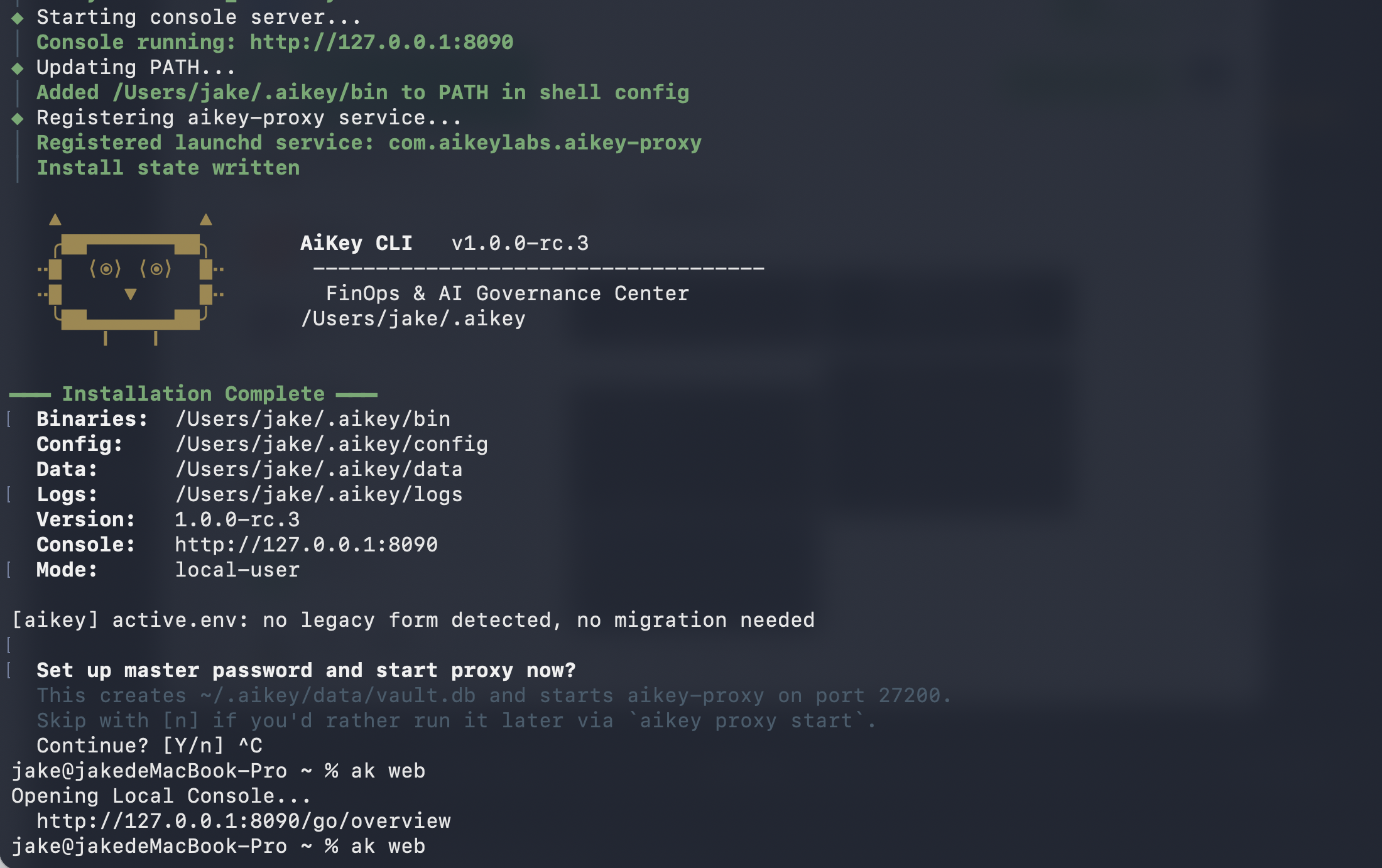
One curl installs aikey into ~/.aikey/bin; a single source command makes the current shell pick it up.

  1. 1
    Paste the install command in a terminal:curl -fsSL https://aikeylabs.com/i/of | bash
  2. 2
    Activate PATH in the current shell:source ~/.zshrc # or source ~/.bashrc
  3. 3
    Verify install:aikey --version
aikey CLI installation terminal output
install.sh output
RECIPE 02 · OPEN CONSOLE

Open the aikey web console

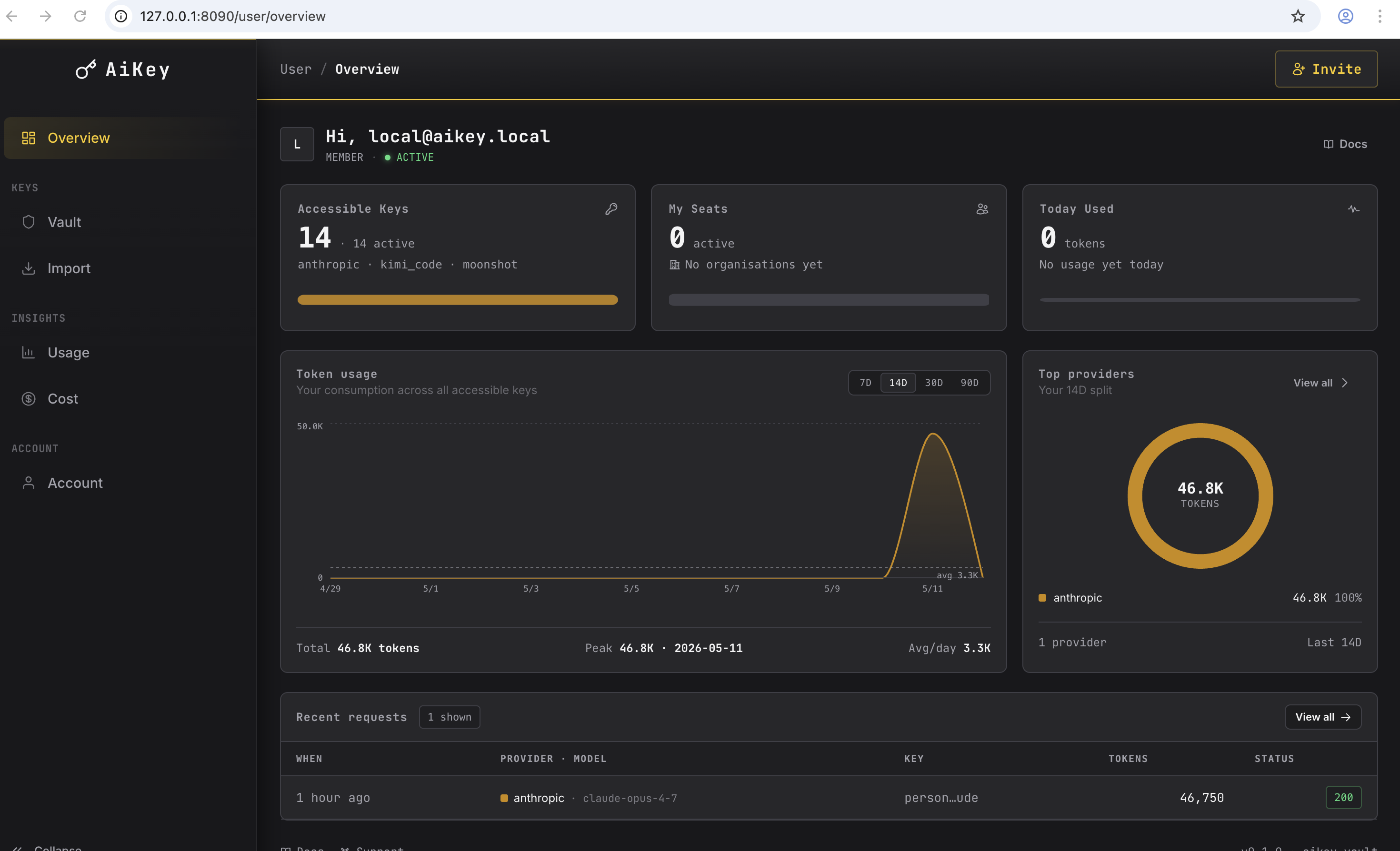
The local Vault console — most subsequent operations happen here.

  1. 1
    Run:aikey web
  2. 2
    The browser opens http://127.0.0.1:27200. The Key list is empty on first launch.
aikey web first-open, empty vault
First launch — empty Vault state
RECIPE 03 · ADD KEY

Add a KEY to Vault

Web form or CLI, both work — the real credential is AES-256-GCM-encrypted and stays in the local Vault.

Option A · Web form
  1. 1
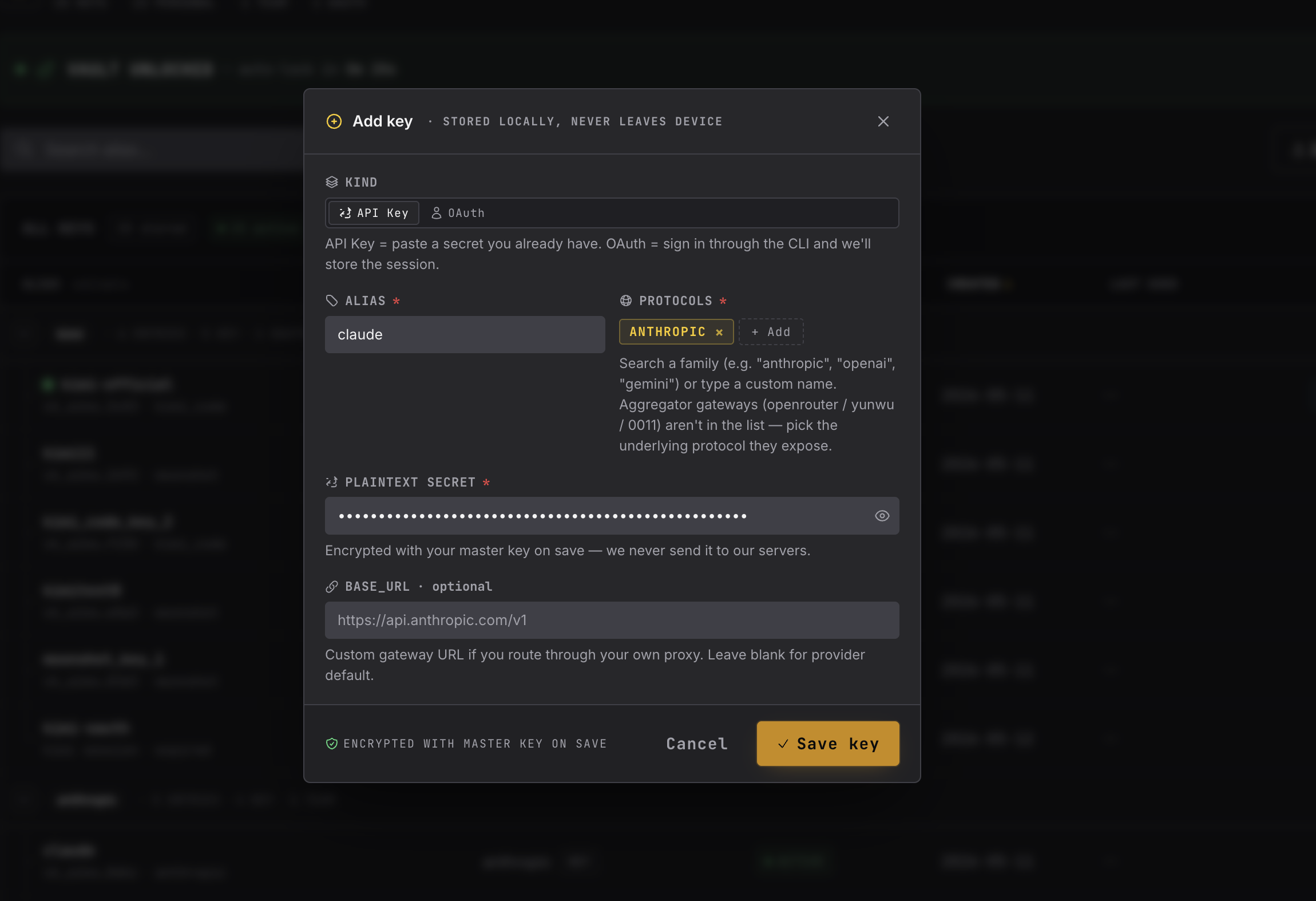
    On the Vault page click + Add Key
  2. 2
    Fill alias, pick provider, paste API key
  3. 3
    Submit — a connection test runs automatically; green = ready
Add Key form in aikey web
Option B · CLI
  1. 1
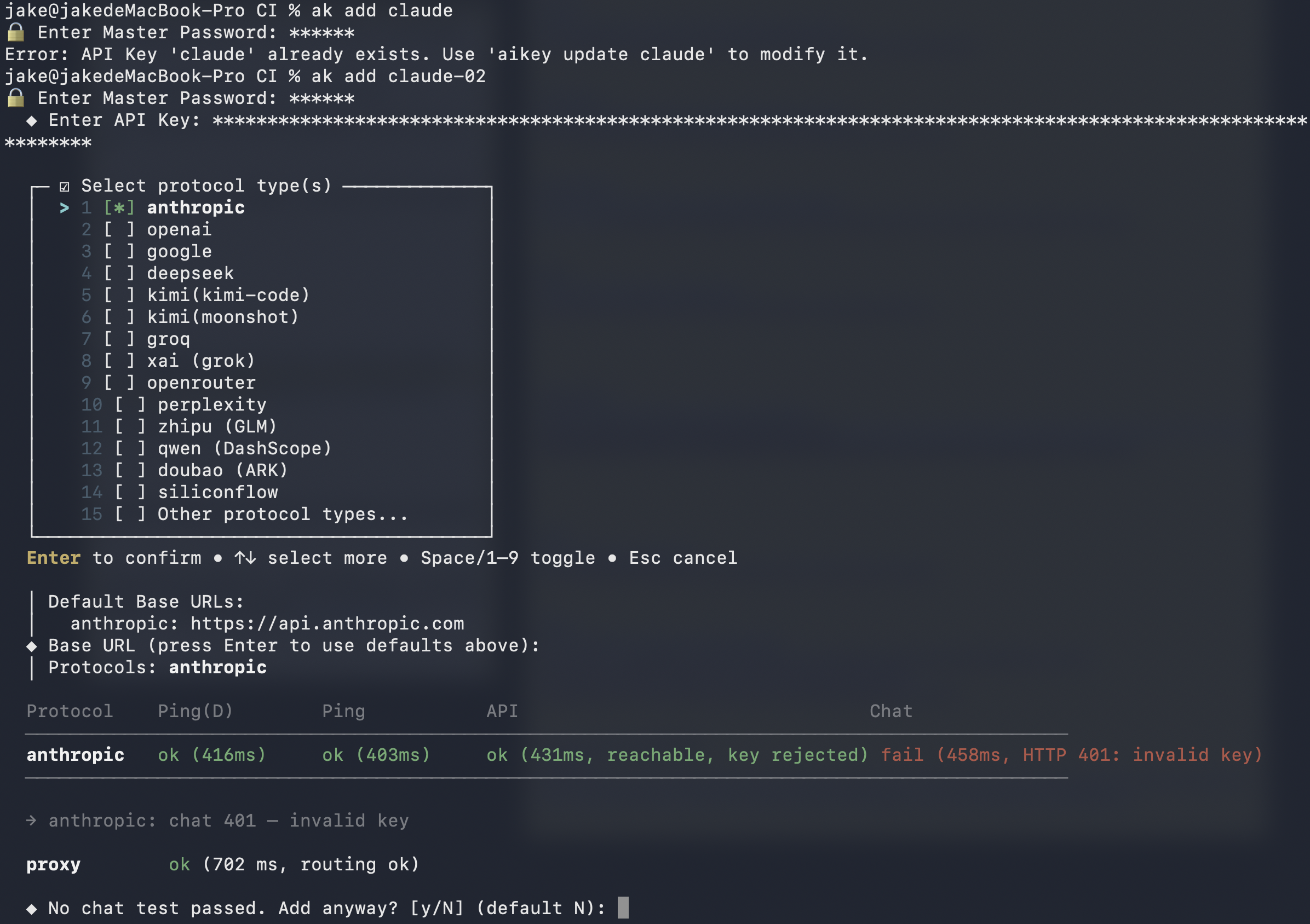
    Interactive mode (recommended):aikey key add
  2. 2
    Follow prompts: alias, provider, key. The new entry becomes active automatically.
CLI: aikey key add interactive flow
After adding, see the full Vault

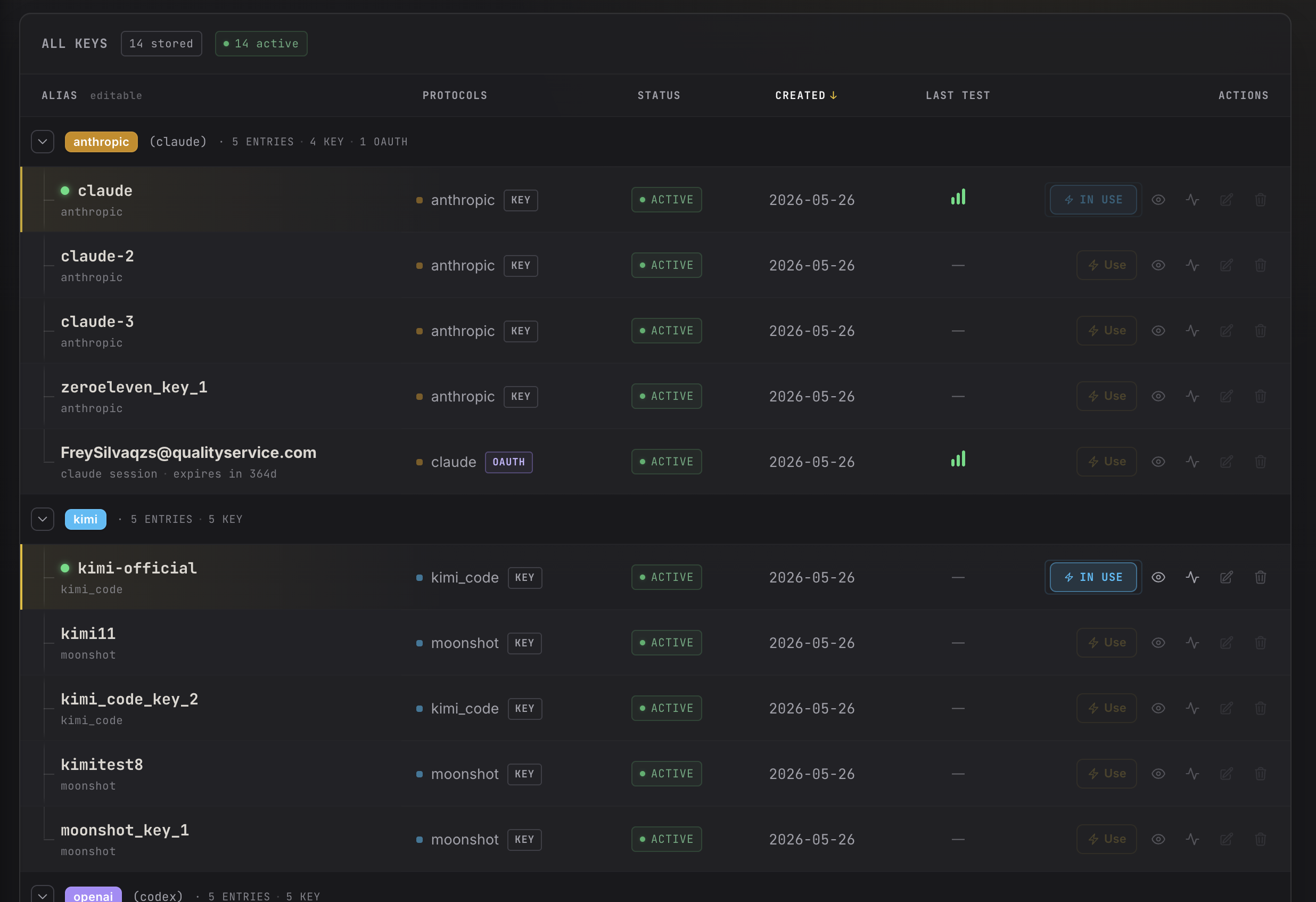
All KEYs are grouped by provider — see alias / protocol / status / last test / current active.

All Keys list grouped by provider

Read about OAuth and the Vault security model

RECIPE 04 · BATCH IMPORT

Batch import KEYs

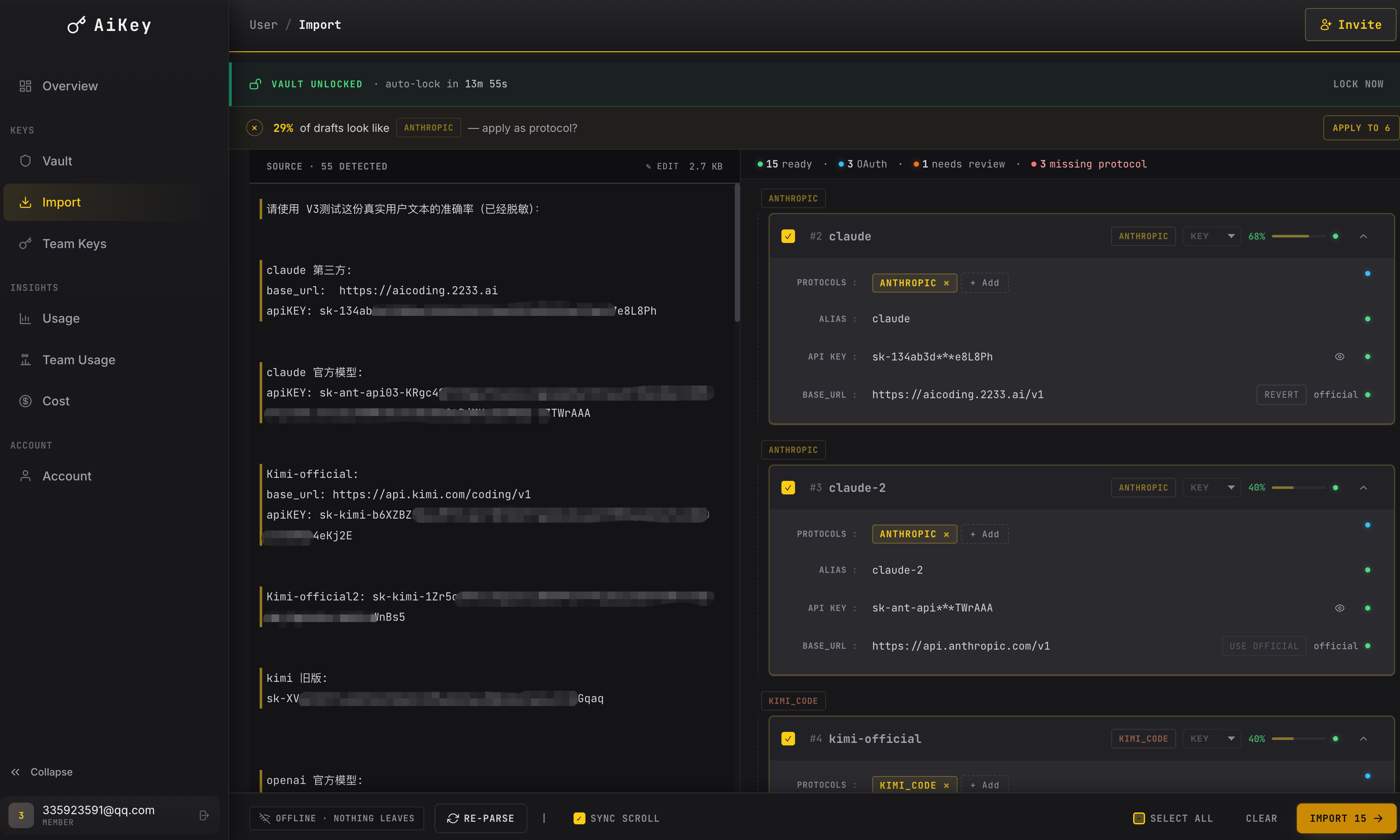
Already have many keys in env vars / .env / 1Password? Import them all at once instead of pasting one by one.

  1. 1
    Sidebar → Import
  2. 2
    Pick a source: env vars / .env / JSON / paste list
  3. 3
    Preview parsed entries → check the ones to import → one-click import
Batch import dialog with parsed key list
RECIPE 05 · SHELL HOOK

Install the shell hook

Make claude / codex / kimi and friends transparently flow through AiKey — no manual env var edits.

  1. 1
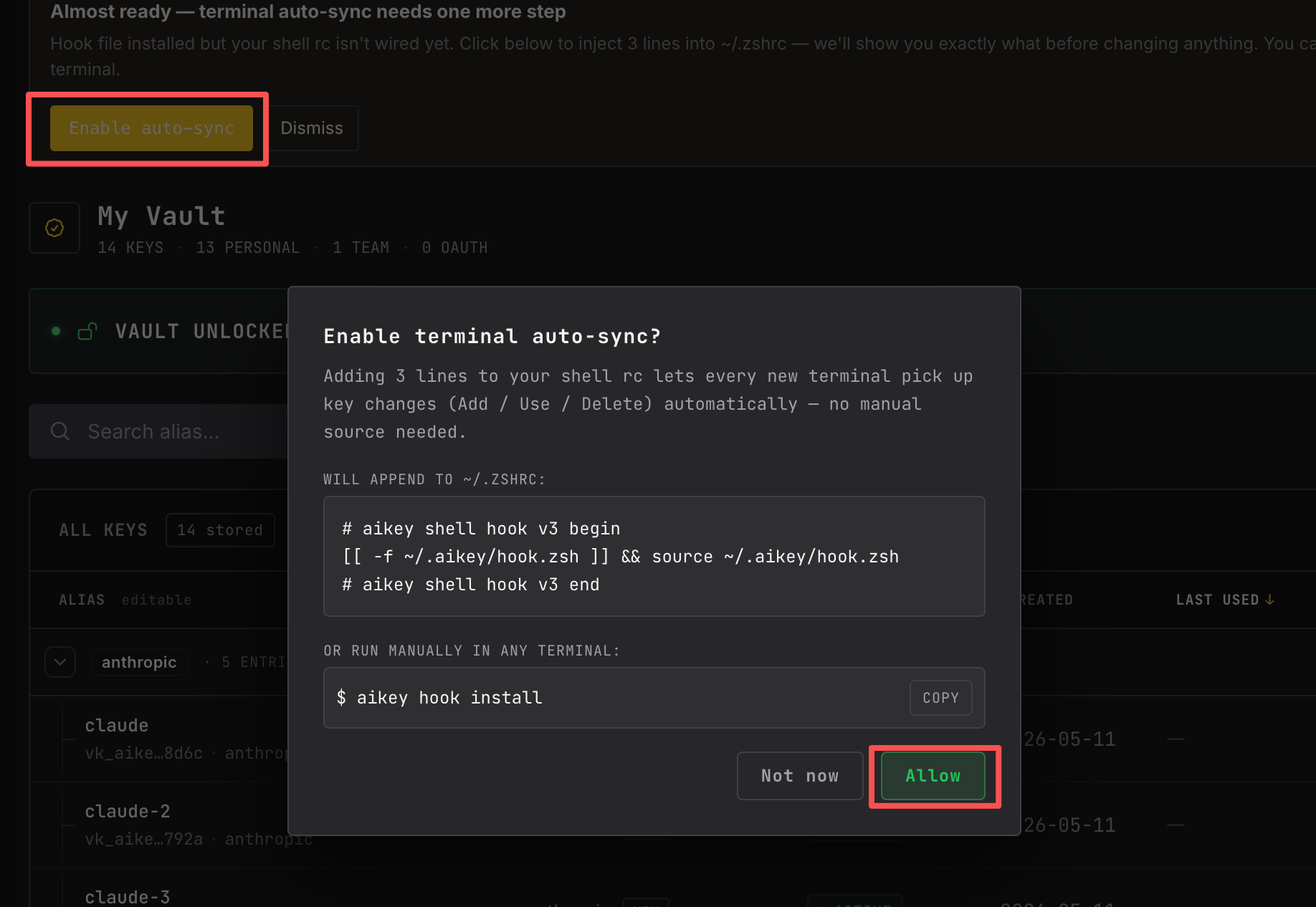
    The Web console shows an INSTALL HOOK READY banner
  2. 2
    Click INSTALL → the hook is appended to ~/.zshrc / ~/.bashrc
  3. 3
    Open a new terminal and run claude — AiKey transparently injects the active credential
Install hook banner in aikey web
RECIPE 06 · SWITCH KEY

Switch the active KEY

Quota exhausted / want to try a different provider / temporary experiment — the switch is hot, your next request uses the new KEY.

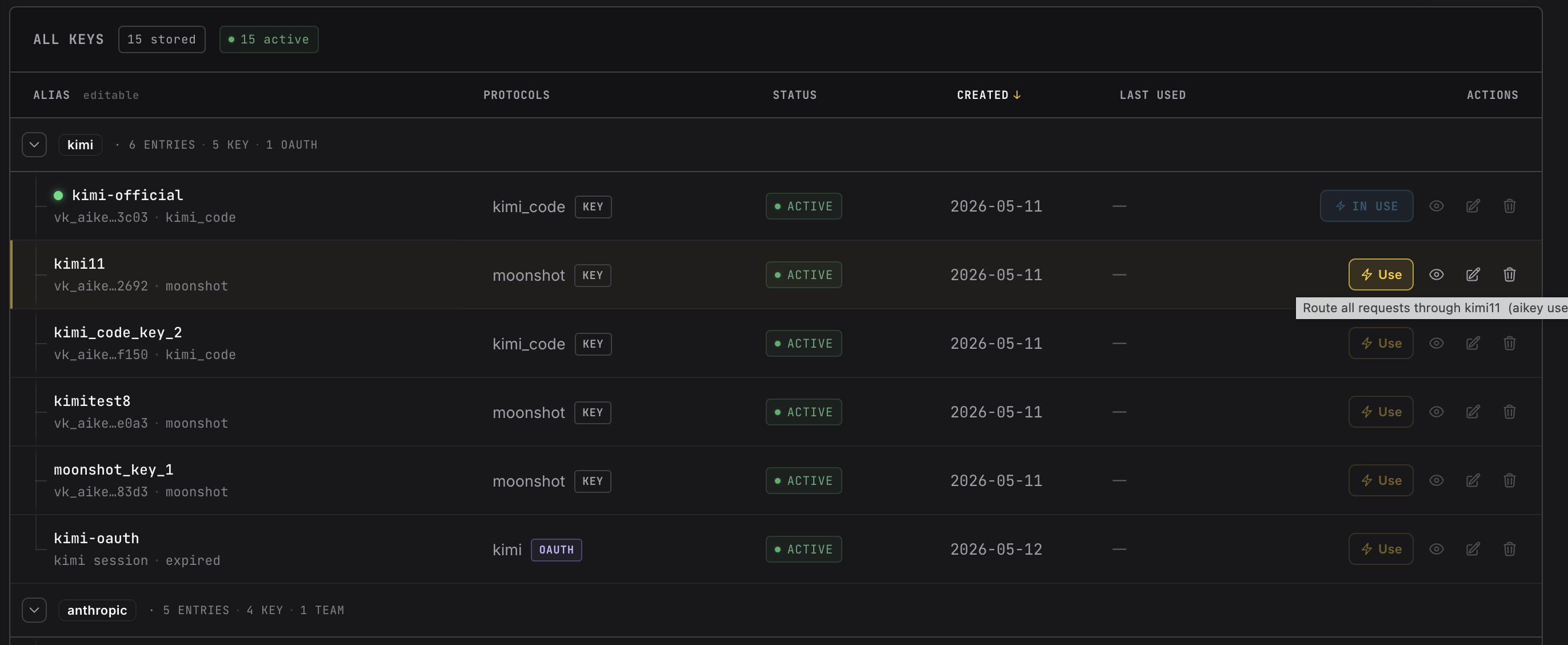
Option A · Web: click Use
  1. 1
    In the Vault list, click the Use button at the end of the target row
  2. 2
    That KEY shows IN USE; other KEYs in the same provider go to standby
Switch active KEY in aikey web
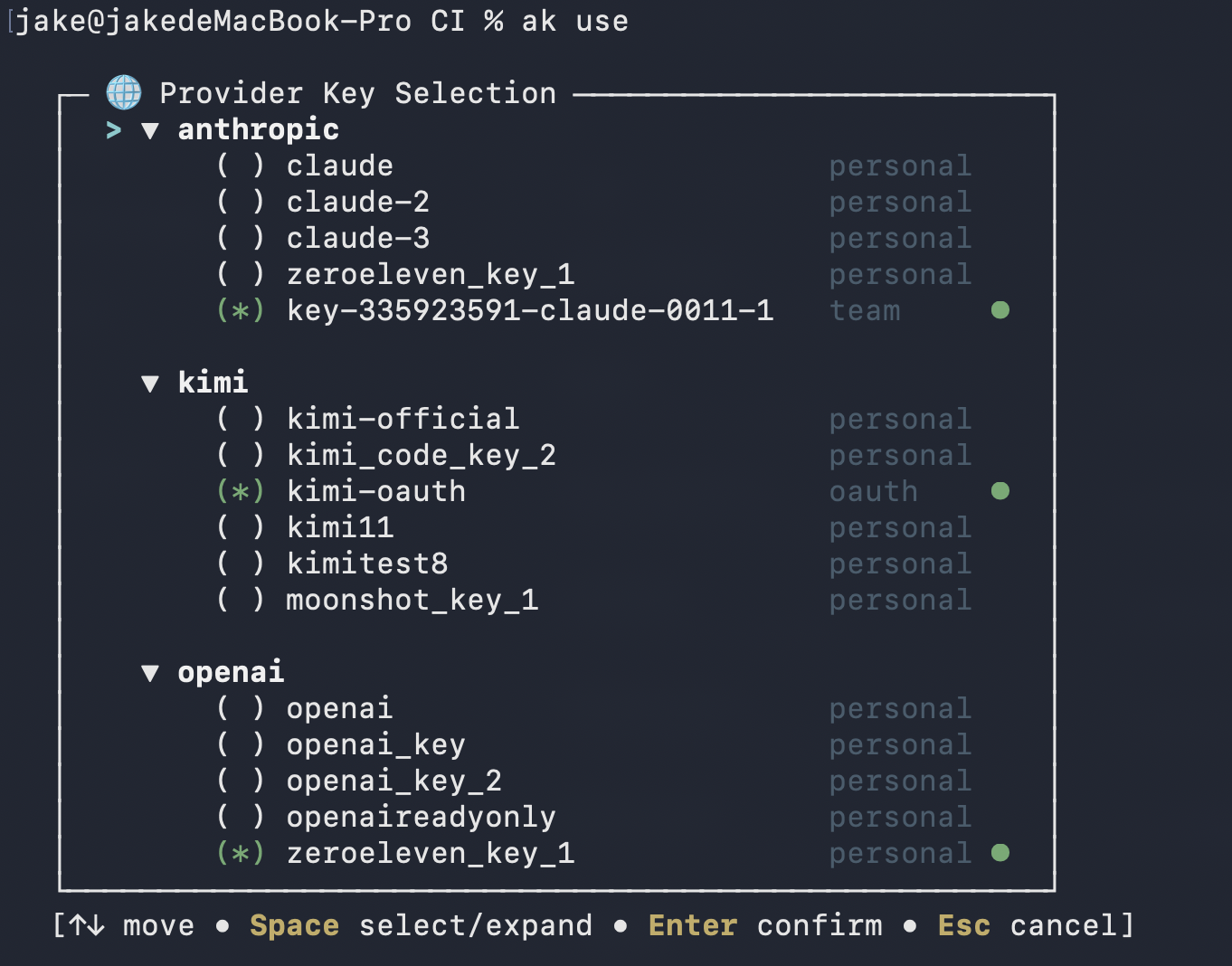
Option B · CLI
  1. 1
    Global switch (every terminal):aikey use <alias>
  2. 2
    Temporary activation in this terminal only:aikey activate <alias>
CLI aikey use command

Read about Route Token + multi-route switching

RECIPE 07 · TEST CONNECTION

Run a connection test

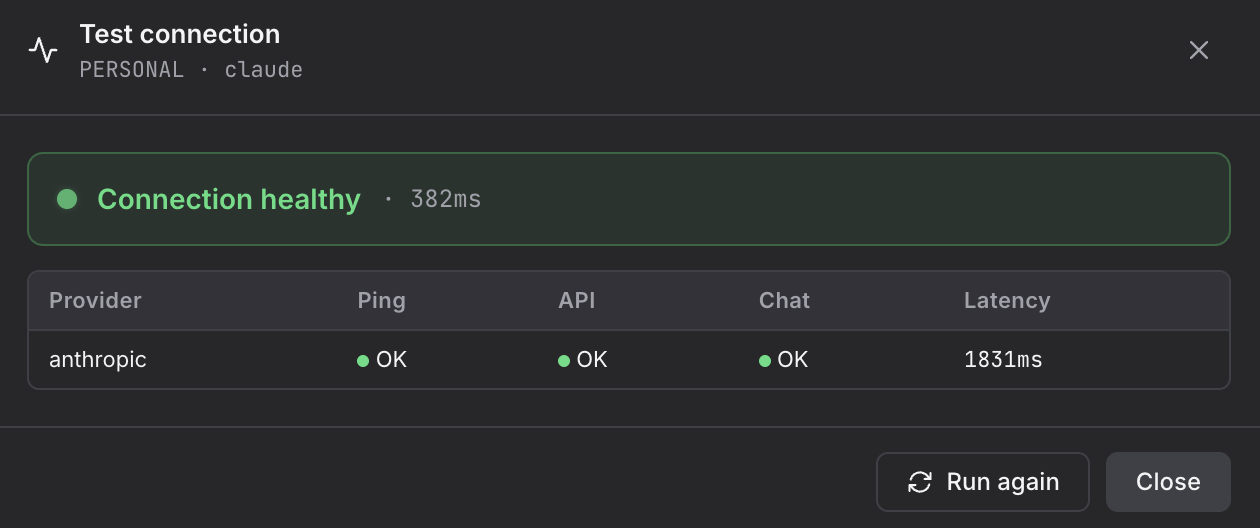
Suspect a KEY is broken? Run a 3-step Ping + API + Chat diagnostic in seconds.

  1. 1
    In the Vault row, click the icon
  2. 2
    A modal runs three stages: Ping (reachability) / API (auth) / Chat (actually send a message)
  3. 3
    Final readout: total latency + healthy/degraded. When it fails, the exact failing stage is shown.
Test connection modal with Ping/API/Chat results
Test connection modal — healthy state

Read about connectivity diagnosis

Want to see real-world scenarios?

"Common Operations" is the step-by-step cookbook; "Use Cases" is the scenario story — the two complement each other.